
Most laptop batteries don’t fail suddenly. They give off early warning signs, and one of the most reliable indicators is temperature. A battery that consistently runs too hot is often a battery that’s wearing out internally.
Windows does not display battery temperature in its standard menus, but there are still ways to understand whether your battery is overheating, how to interpret temperature readings, and when to consider a replacement. This guide focuses entirely on Windows laptops and prepares readers for your upcoming PrystinePC plugin, which will allow users to enter their battery temperature and instantly see whether it indicates a failing battery.
Why Battery Temperature Matters
Lithium‑ion batteries operate safely within a predictable thermal range. When they exceed that range, the internal chemistry begins to degrade more quickly. Over time, this leads to reduced capacity, shorter runtime, and in severe cases, swelling.
Common causes of elevated battery temperature include:
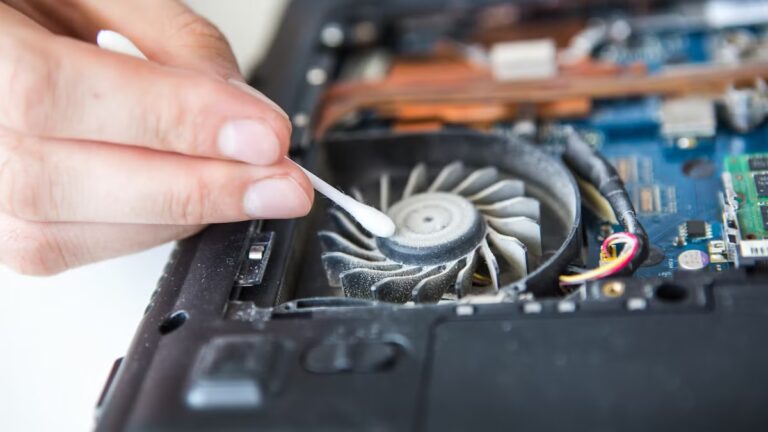
- Dust buildup restricting airflow More Info
- Aging battery cells losing efficiency
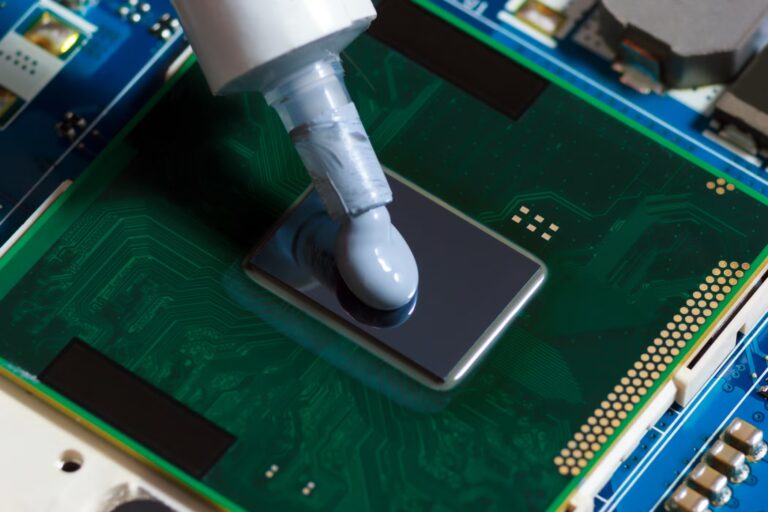
- High background CPU usage generating excess heat More Info
- Faulty or mismatched chargers
Even if your laptop feels only slightly warm, temperature monitoring can help you catch problems early.