If your laptop has been feeling sluggish lately—running hotter, draining battery faster, or sounding like a tiny jet engine—it might not be a software problem at all. One of the most common (and most overlooked) causes is simple: dust buildup inside your CPU fan.
At Prystine PC, we’re all about keeping your laptop running in tip‑top shape, and that starts with understanding how something as small as dust can cause such big problems.
Why Your CPU Fan Matters More Than You Think
Your CPU is the brain of your computer. It works hard, generates heat, and relies on a cooling system—usually a fan and heatsink—to keep temperatures under control. When that cooling system gets clogged with dust, pet hair, lint, or debris, everything starts to go downhill.
Here’s what happens:
- Airflow drops dramatically. Dust acts like a blanket, blocking vents and coating fan blades.
- Temperatures rise. With less airflow, heat gets trapped inside the laptop.
- Your CPU slows itself down. Modern processors throttle performance to avoid overheating.
- Battery life tanks. Fans spin faster and stay on longer, draining power.
- Internal components wear out faster. Heat is the enemy of electronics.
A dirty fan doesn’t just make your laptop louder—it shortens its lifespan.
Signs Your CPU Fan Needs Cleaning
You might be dealing with dust buildup if you notice:
- Your laptop feels hot even during light tasks
- The fan runs loudly or constantly
- Performance drops when multitasking or gaming
- Battery life isn’t what it used to be
- The bottom of the laptop feels unusually warm
If you’re experiencing two or more of these, it’s time for a cleaning.
How to Fix the Problem (and Prevent It From Coming Back)
1. Clean the Vents
Sometimes the issue is external. A quick blast of compressed air around the vents can remove surface dust and improve airflow.
2. Deep Clean the Fan
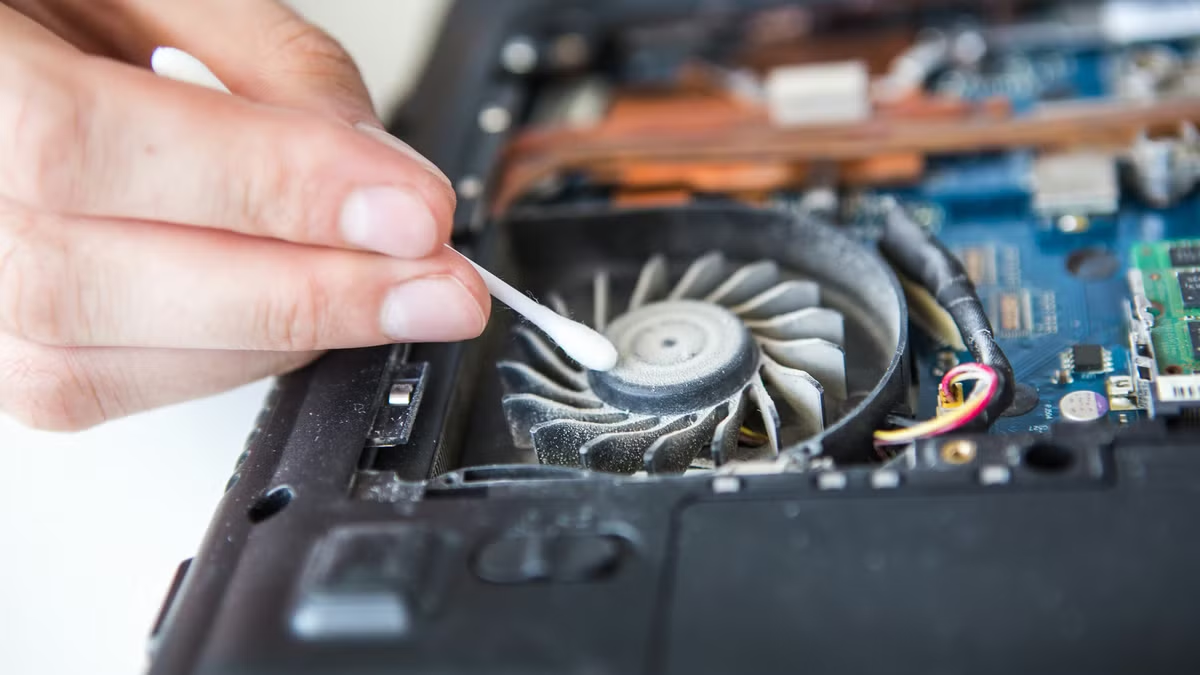
For a real fix, the inside needs attention. This involves:
- Opening the laptop
- Removing dust from the fan blades
- Cleaning the heatsink fins
- Clearing internal vents
- Reassembling the device carefully
Check out our cleaning service for more detailed, advanced information. Only for $5!
3. Keep Your Workspace Clean
Dusty environments = dusty laptops. Simple changes like using your laptop on a desk instead of a bed or couch can reduce buildup.
4. Schedule Regular Cleanings
Just like a car needs oil changes, your laptop needs periodic internal cleanings. Most users benefit from a cleaning every 6–12 months, depending on usage and environment.
Final Thoughts
A dirty CPU fan is one of the simplest problems to fix, yet one of the most impactful when ignored. Keeping your laptop clean isn’t just about aesthetics—it’s about performance, longevity, and protecting your investment.
If your laptop is running hot, loud, or slow, it might be time for a deep clean. And when you’re ready, Prystine PC is here to help you keep your device running like new.